Getting started with Xodo Sign is quick and free. Follow the steps below to create your account.
Step 1: Sign up
- Go to xodosign.com and click Sign Up Free in the top-right corner.
- Enter your email address and choose a password (minimum 6 characters).
- Click Create Account.
Step 2: Enter your account details
- Enter your first and last name.
- Optionally, add your company name and other profile details.
- Click Continue.
Step 3: Choose a subscription plan
- Select the plan that fits your needs — Free, Professional, or Business.
- If you want to start with the Free plan, click Skip for now in the top-right corner.
- You can upgrade your plan at any time from your account settings.
Step 4: Set up your Business
- Enter a Business Name — this is how your business will appear to signers on documents and in email notifications.
- Choose a Workspace URL — this creates a personalized subdomain for your Xodo Sign account (e.g., yourcompany.xodosign.com).
- Click Finish Setup.
Step 5: Confirm your email address
After completing registration, Xodo Sign will send a confirmation email to the address you used to sign up. Click the activation link in the email to verify your account and unlock all features.
Tip: If you don't see the email, check your spam or junk folder.
You're ready to go!
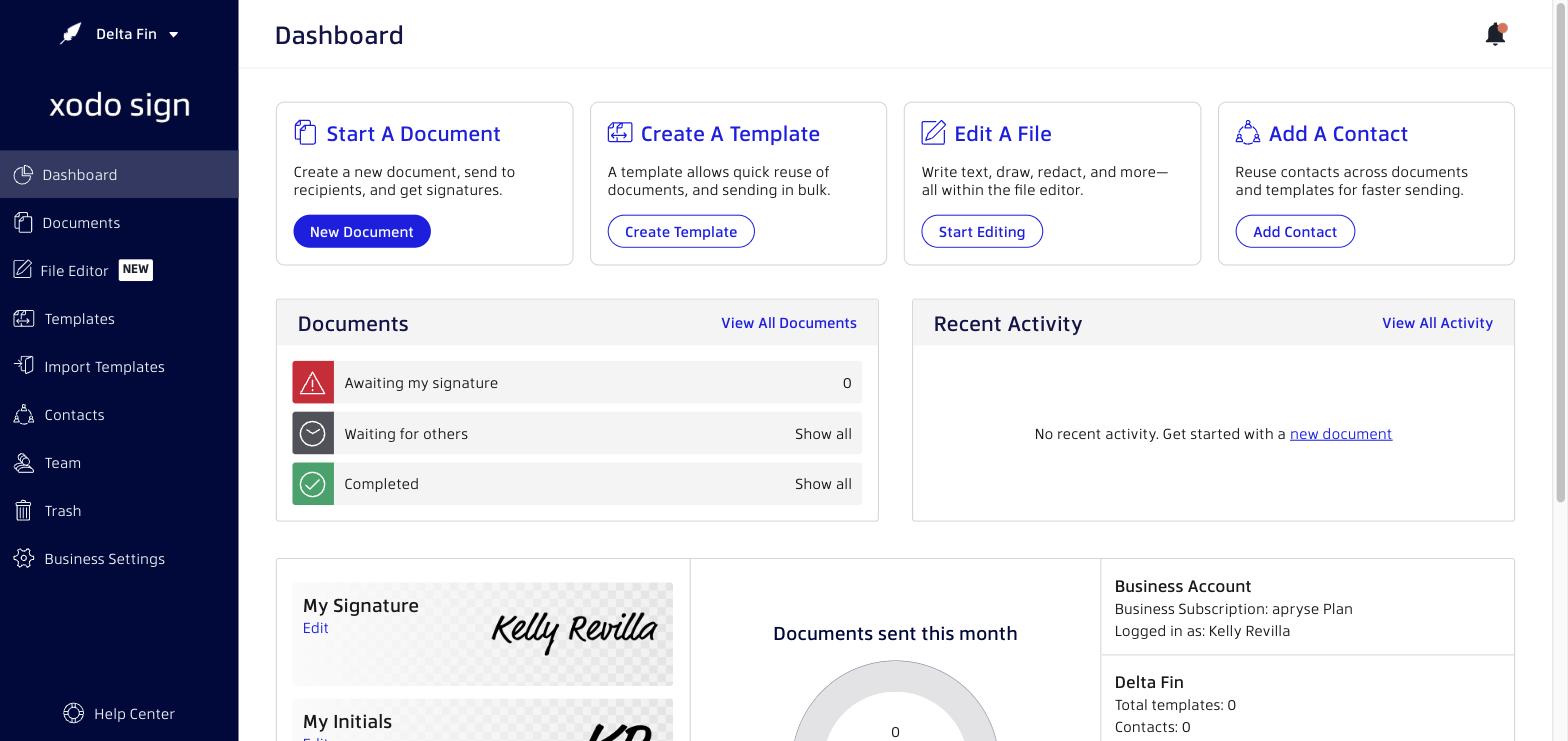
Once your email is confirmed, you'll land on your Dashboard — your home base for sending, managing, and tracking documents.
Next steps
Was this article helpful?
That’s Great!
Thank you for your feedback
Sorry! We couldn't be helpful
Thank you for your feedback
Feedback sent
We appreciate your effort and will try to fix the article