When you log in to Xodo Sign, you land on the Dashboard — your central hub for managing documents, templates, and account settings. This article explains the main areas of the interface.
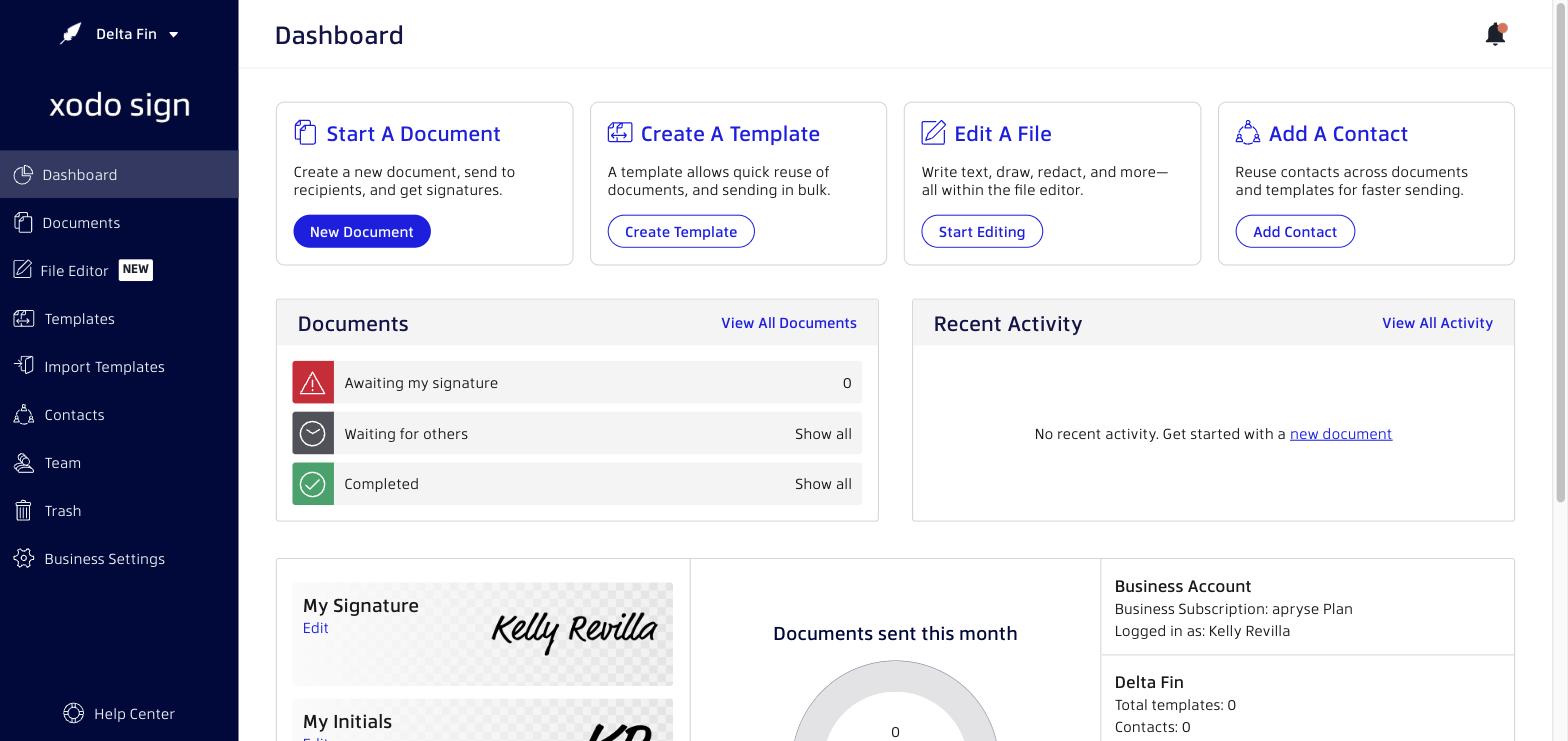
Left-side navigation
The left sidebar gives you quick access to all the major sections of Xodo Sign:
- Dashboard — Overview of your document activity, quick-action cards, and recent activity.
- Documents — View and manage all documents in your account, including drafts, in-progress, and completed documents.
- File Editor — Open the built-in document editor to write, draw, redact, or annotate files before sending.
- Templates — Create and manage reusable document templates.
- Import Templates — Import templates from DocuSign or other sources.
- Contacts — Manage your saved signers and recipients.
- Team — Invite and manage users in your business account.
- Trash — View and restore recently deleted documents.
- Business Settings — Configure your workspace preferences, branding, signing settings, and more.
- Help Center — Quick access to this Help Center.
Dashboard overview
The Dashboard shows you the most important information at a glance:
- Quick-action cards — Cards to Start a Document, Create a Template, Edit a File, or Add a Contact.
- Documents widget — See how many documents are awaiting your signature, waiting for others, or completed.
- Recent Activity — A feed of the latest actions taken on your documents.
- My Signature — View or update your default saved signature.
- Documents sent this month — Track your document usage.
- Business Account info — See your current subscription plan and logged-in account.
Settings: User vs. Business
Xodo Sign settings are organized into two levels:
- User Settings — Personal preferences that only affect you, including notification settings and your saved signatures and initials.
- Business Settings — Preferences that apply to the current business workspace: General Preferences, Signing Preferences, Delivery Preferences, Expiration & Reminders, and Branding.
To access Settings, click Business Settings in the left navigation bar.
Related articles
Was this article helpful?
That’s Great!
Thank you for your feedback
Sorry! We couldn't be helpful
Thank you for your feedback
Feedback sent
We appreciate your effort and will try to fix the article