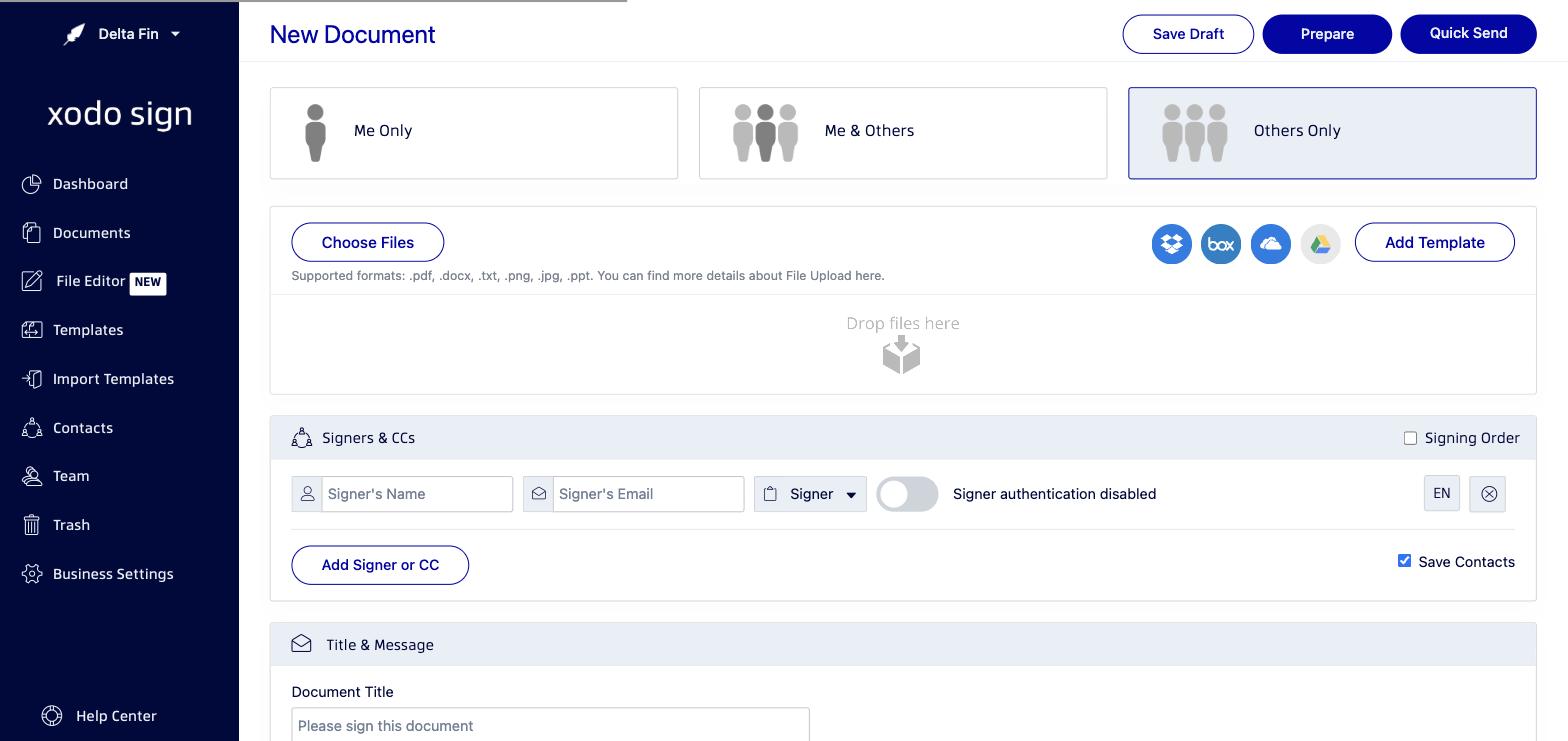
When you create a new document in Xodo Sign, the first thing you'll choose is who is signing. There are three document types, each designed for a different signing scenario.
Me Only
Choose Me Only when you are the only person who needs to sign the document.
Use this when you need to:
- Sign a document for your own records
- Complete a form or waiver that only requires your signature
- Self-sign and then share or download the completed document
In Me Only mode, you'll be taken directly to the document editor where you can place your own signature and other fields.
Me & Others
Choose Me & Others when both you and at least one other person need to sign the document.
Use this when:
- You are a party to the agreement and need to co-sign
- You want to sign alongside clients, partners, or colleagues
You'll be able to add yourself as a signer along with any additional signers. You can also set a Signing Order to control who signs first.
Others Only
Choose Others Only when someone else needs to sign the document — not you.
Use this when:
- You are sending a contract for a client or employee to sign
- You are the sender but not a signing party
- You need multiple people to sign, none of whom are you
Quick Send and Quick Sign
Depending on which document type you choose, you'll see a Quick Send or Quick Sign button at the top of the New Document screen. These options let you send or sign immediately — skipping the document editor for placing form fields.
Use Quick Send/Quick Sign when your document doesn't need custom form fields and you just want to get it signed fast.
Related articles
Was this article helpful?
That’s Great!
Thank you for your feedback
Sorry! We couldn't be helpful
Thank you for your feedback
Feedback sent
We appreciate your effort and will try to fix the article