When sending a document to multiple signers, you can control the order in which each person receives it. This is called the Signing Order. By default, all signers receive the document simultaneously. With Signing Order enabled, each signer only receives the document after the previous signer has completed their action.
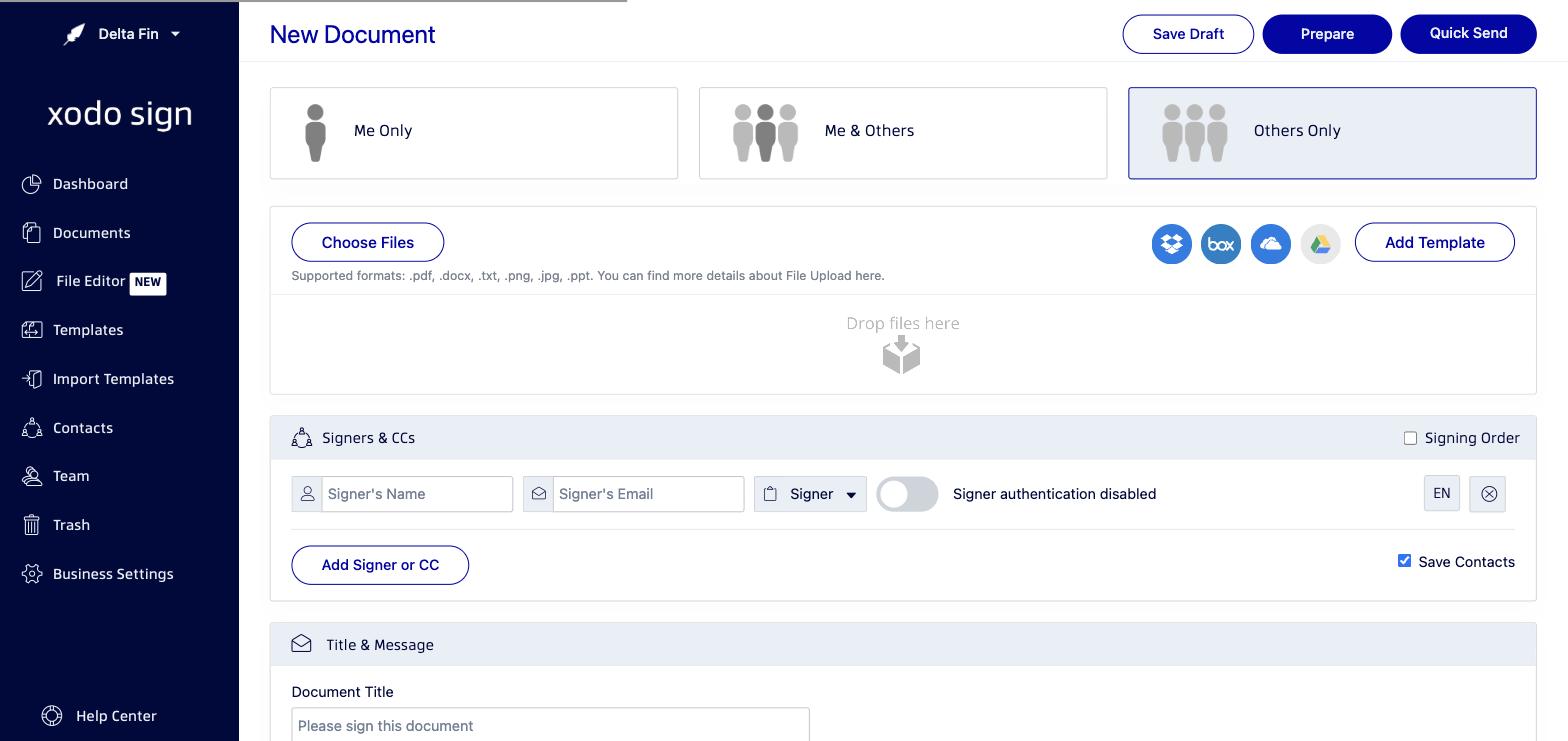
Setting a signing order in a new document
- Start a new document and upload your file.
- In the Signers & CCs section, check the Signing Order checkbox (top-right of the signers panel).
- Number badges will appear next to each signer row, indicating the signing sequence.
- Drag and drop signers using the handle on the left of each signer row to reorder them.
- When you're done, click Prepare to place fields and then send.
Signers further down the signing order will not receive the document until all previous signers have completed their actions.
Setting a signing order in a template
- Open a template or create a new one.
- In the Roles section, each role will have a numbered badge (1, 2, 3...) indicating the order.
- Drag and drop roles using the handle on the left to reorder the signing sequence.
- Save the template when done.
When this template is used to send a document, signers will sign in the order defined by the roles.
Why use signing order?
- Ensure that a manager reviews and signs before a direct report.
- Make sure the client signs only after internal approval.
- Control the flow of multi-party contracts or agreements.
Tips
- If you turn off Signing Order after enabling it, all signers will receive the document at the same time again.
- You can combine Signing Order with Signer Authentication for additional security.
Related articles
Was this article helpful?
That’s Great!
Thank you for your feedback
Sorry! We couldn't be helpful
Thank you for your feedback
Feedback sent
We appreciate your effort and will try to fix the article