The Recipients section on the New Document page is where you add the people who need to sign your document or receive a copy of it. You must add at least one signer before you can proceed to the next step.
Recipient Roles
There are two types of recipients you can add:
- Signer — Must complete and sign the document. Their signature fields are placed during the Prepare step.
- CC (Carbon Copy) — Receives a copy of the completed document by email but does not need to sign.
How to Add a Signer or CC Recipient
- On the New Document page, go to the Recipients section on the right side.
- Click Add Signer or CC to open the add recipient form.
- Enter the recipient's Name and Email address. As you type, matching entries from your saved contacts will appear under Suggested Contacts — click one to auto-fill the fields.
- Use the Signer or CC dropdown to set their role.
- Optionally, use the Language dropdown to set the language for the recipient's email notification and signing experience. The default is English (EN).
- Click Save Changes to add the recipient. To cancel without saving, click Cancel.
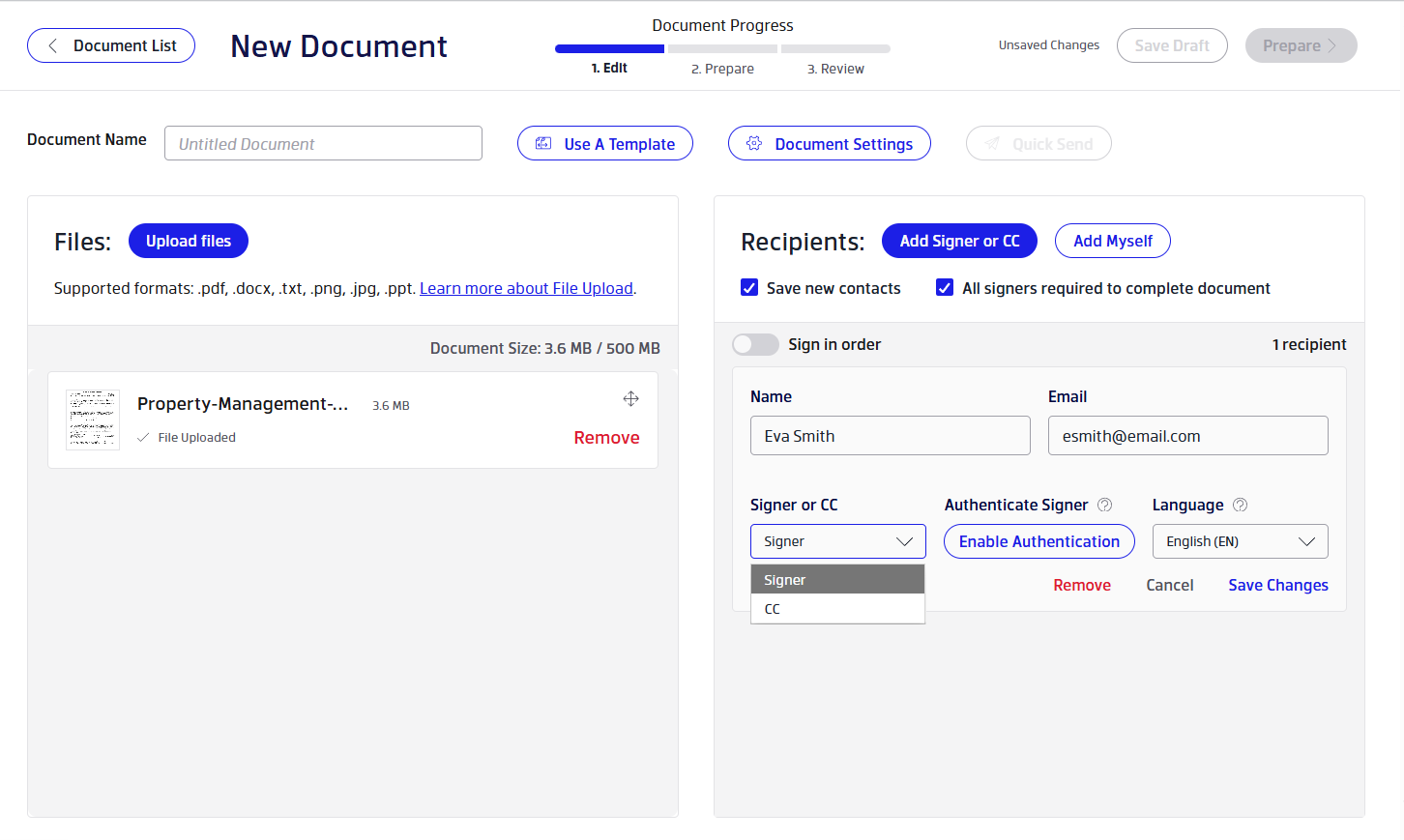
By default, two options are pre-checked when you add recipients:
- Save new contacts — Saves the recipient's name and email to your contacts for future use.
- All signers required to complete document — Requires every signer to sign before the document is considered complete. Uncheck this if partial completion should be allowed.
How to Add Yourself as a Recipient
To add yourself as a signer or CC, click Add Myself. Your account name and email will be added automatically as a new recipient row.
Viewing and Managing Recipients
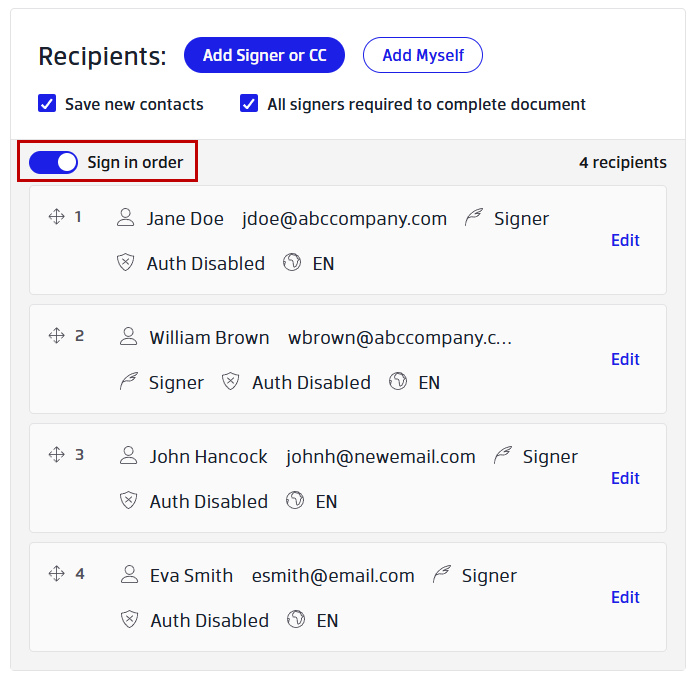
Once added, each recipient appears as a row in the Recipients list. The row shows:
- The recipient's name and email address
- Their role (Signer or CC)
- Their authentication setting (Auth Disabled or Auth Enabled)
- Their notification language (e.g., EN)
- An Edit link to modify or remove the recipient
To edit a recipient's details or role, click Edit on their row. This reopens the inline form where you can update their name, email, role, authentication, or language. To remove a recipient, open their Edit form and click Remove.
Signing Order
The Sign in Order toggle is off by default. When turned on, signers must complete the document in the sequence they are listed — each signer receives the document only after the previous one has signed.
To change the signing order, enable the Sign in Order toggle and drag recipients into the desired sequence.
Signer Authentication
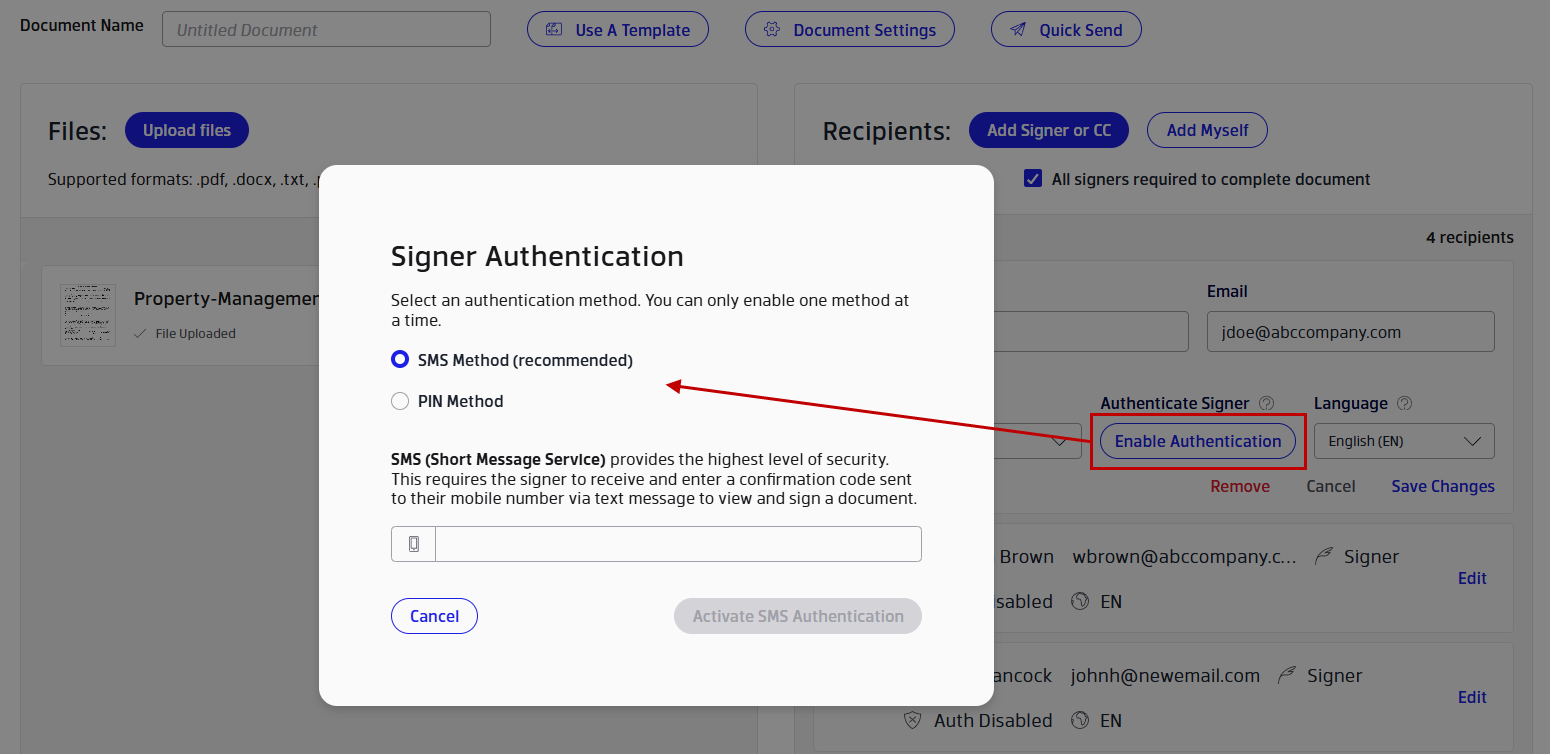
By default, each signer is set to Auth Disabled. To require additional identity verification before a signer can access the document, click Edit on their row and then click Enable Authentication in the form. Xodo Sign supports two authentication methods: SMS (sends a one-time code to their phone) and PIN (you set a code and share it with the signer). See Signer Authentication: SMS and PIN Methods for more details.
Was this article helpful?
That’s Great!
Thank you for your feedback
Sorry! We couldn't be helpful
Thank you for your feedback
Feedback sent
We appreciate your effort and will try to fix the article