Each business in Xodo Sign can have multiple team members with different levels of access. You can invite team members directly from the Team page in your business.
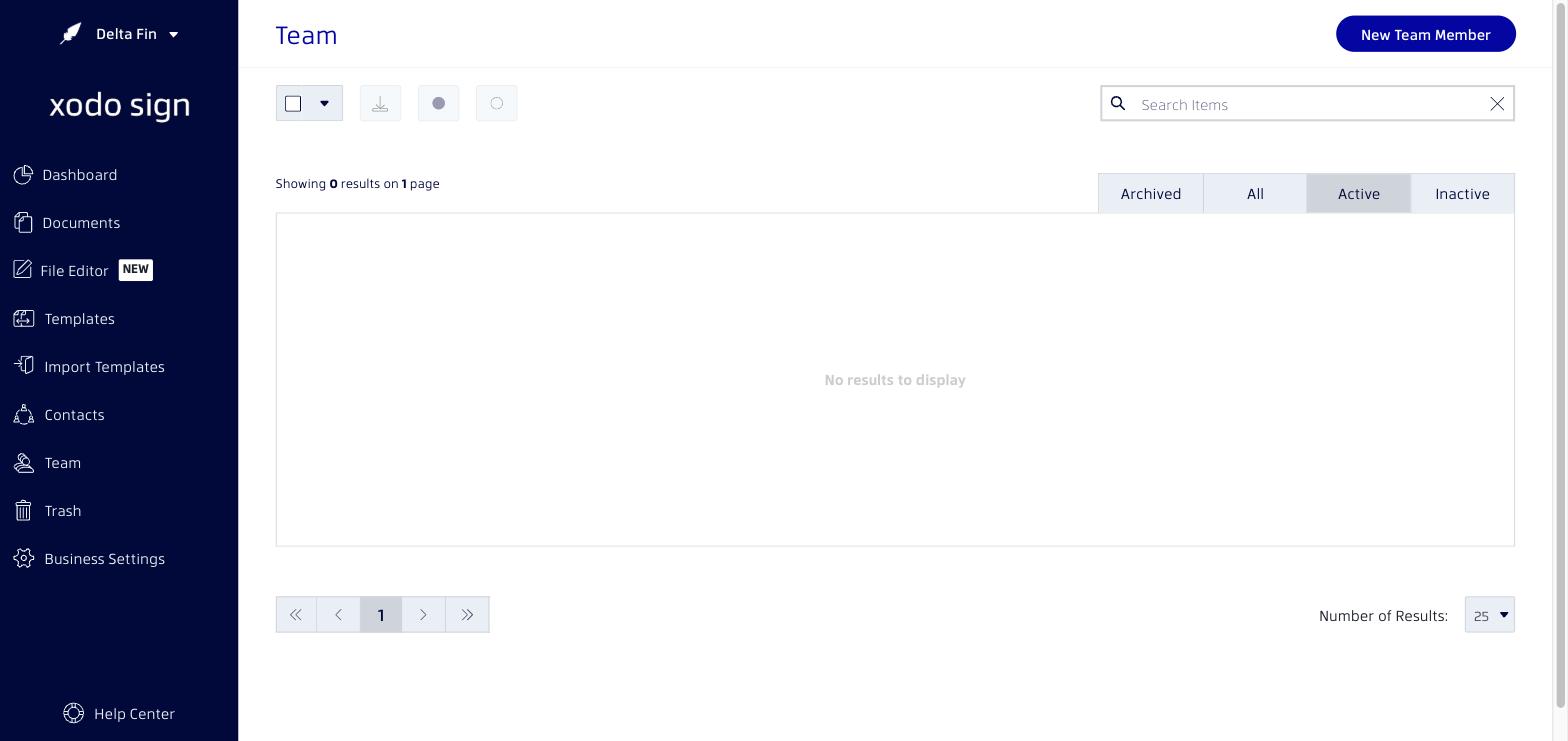
How to Invite a Team Member
- Go to Team in the left navigation menu.
- Click the New Team Member button in the top-right corner.
- Enter the team member's email address.
- Select their role:
- Super Admin: Full business-level permissions, except deleting the business. Cannot modify account-level settings.
- Manager: Can view, create, edit, delete, and use all business documents and templates, and cancel ongoing documents.
- Staff: Can create, edit, and cancel their own documents. Can also use global templates.
- Read-Only: Can view all business documents and templates, but cannot create or modify anything.
- Click Save. An invitation email with login instructions will be sent to the team member's email address.
Important Notes
Team members cannot be added to multiple businesses at once. To give a team member access to multiple businesses, invite them separately from each business. Each invitation counts as one spot on your account's team member limit.
Related articles
Was this article helpful?
That’s Great!
Thank you for your feedback
Sorry! We couldn't be helpful
Thank you for your feedback
Feedback sent
We appreciate your effort and will try to fix the article