Xodo Sign saves the email addresses and names of people you've sent documents to, making it easy to find and add them as signers in the future.
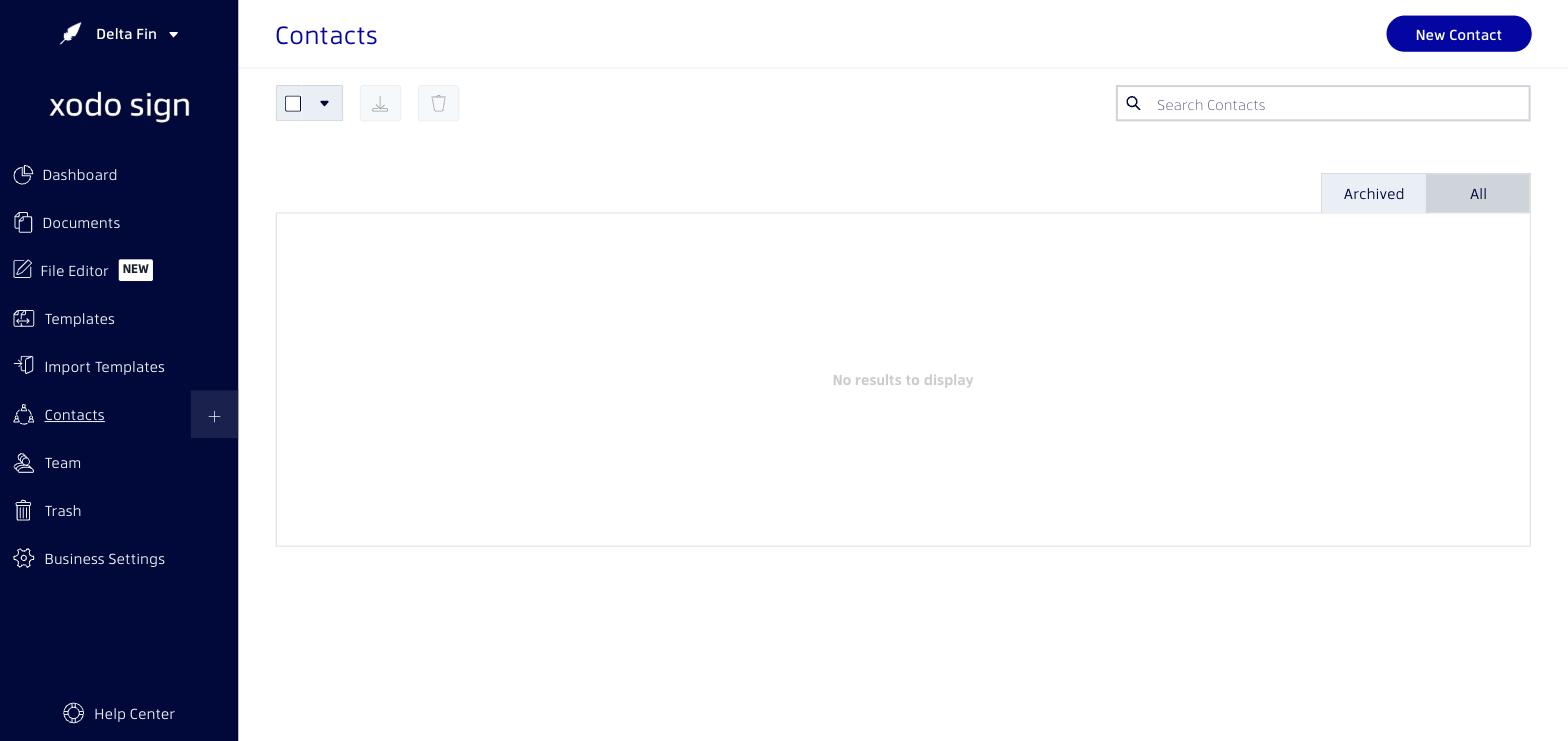
View Your Contacts
- Log in to your Xodo Sign account.
- Click Contacts in the left navigation menu.
- You'll see a list of all contacts associated with your account.
Add a Contact
- In the Contacts page, click New Contact.
- Enter the contact's name and email address.
- Click Save.
Edit or Delete a Contact
- To edit a contact, hover over their name and click the edit (pencil) icon.
- To delete a contact, hover over their name and click the delete (trash) icon.
Using Contacts When Sending Documents
When adding signers to a new document, you can start typing a name or email in the signer field. Xodo Sign will auto-suggest matching contacts, saving you time.
Was this article helpful?
That’s Great!
Thank you for your feedback
Sorry! We couldn't be helpful
Thank you for your feedback
Feedback sent
We appreciate your effort and will try to fix the article