If you receive a document to sign via Xodo Sign, you do not need a Xodo Sign account to review and complete your signature. This article walks you through the entire signing experience from start to finish.
Step 1: Receive the Signing Email
When someone sends you a document to sign through Xodo Sign, you will receive an email notification. The email will include the name of the requester, their organization, and a Review & Sign button.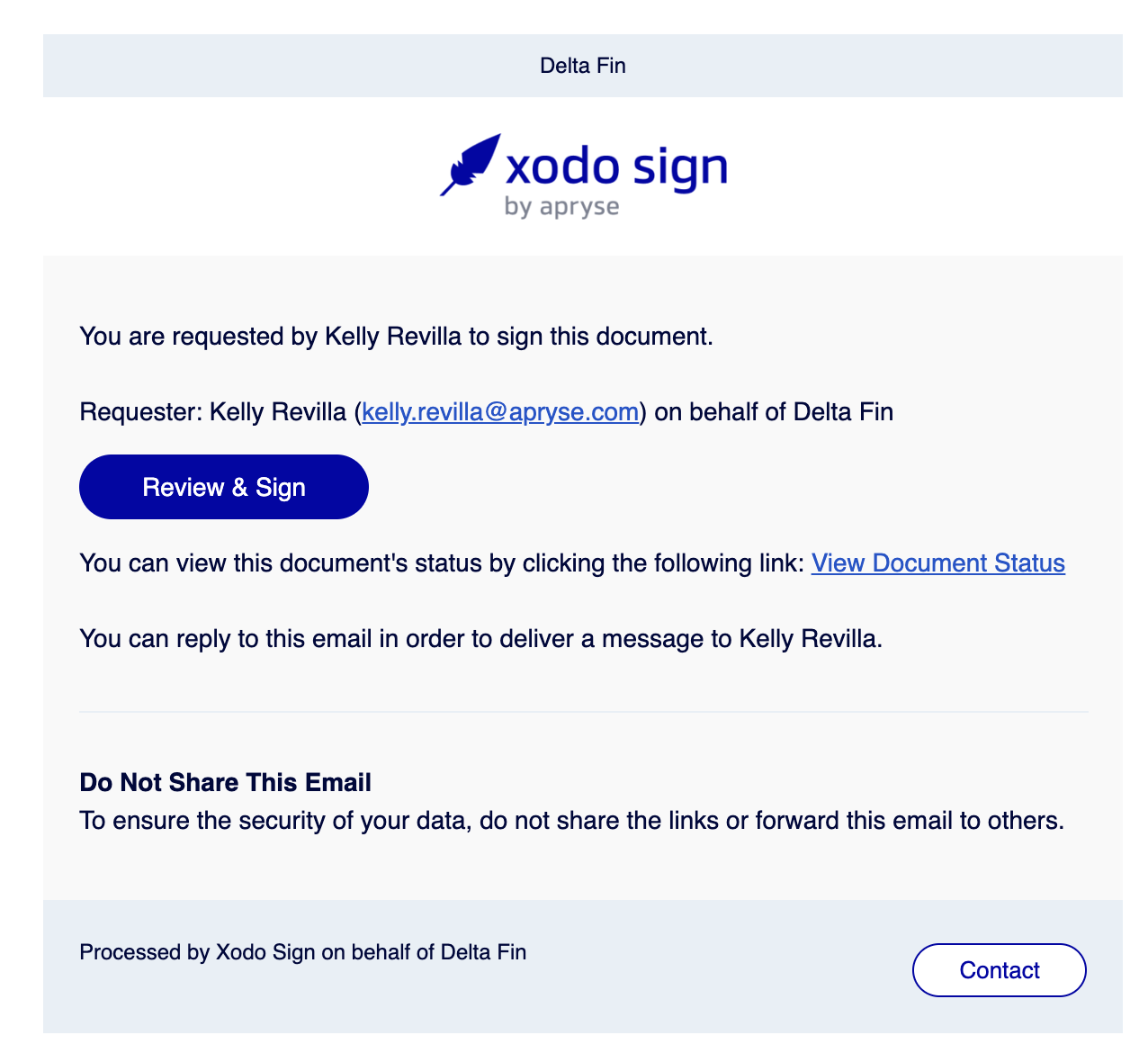
Step 2: Open the Document
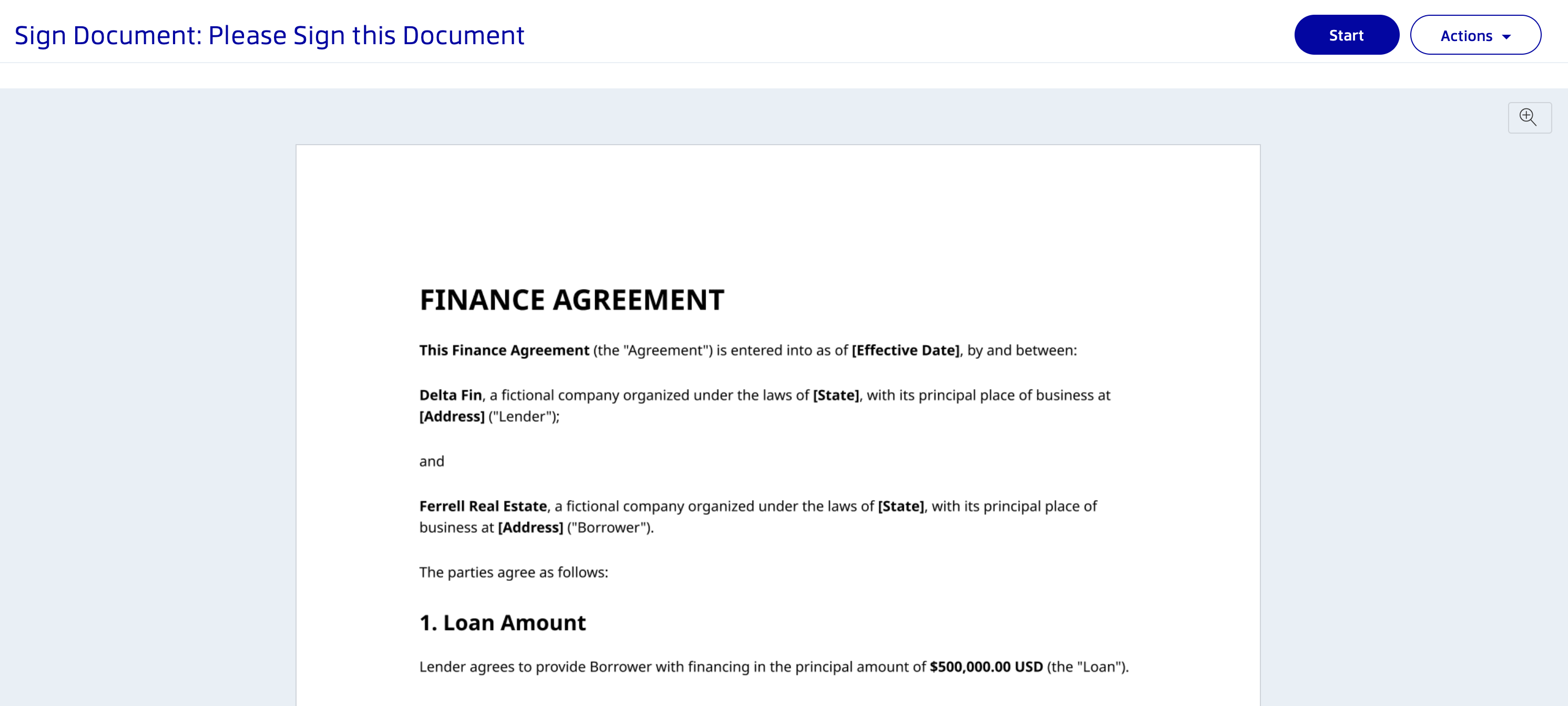
Click the Review & Sign button in the email. The document will open in your browser. Click the Start button in the top right corner to begin the signing process.
Step 3: Complete the Required Fields
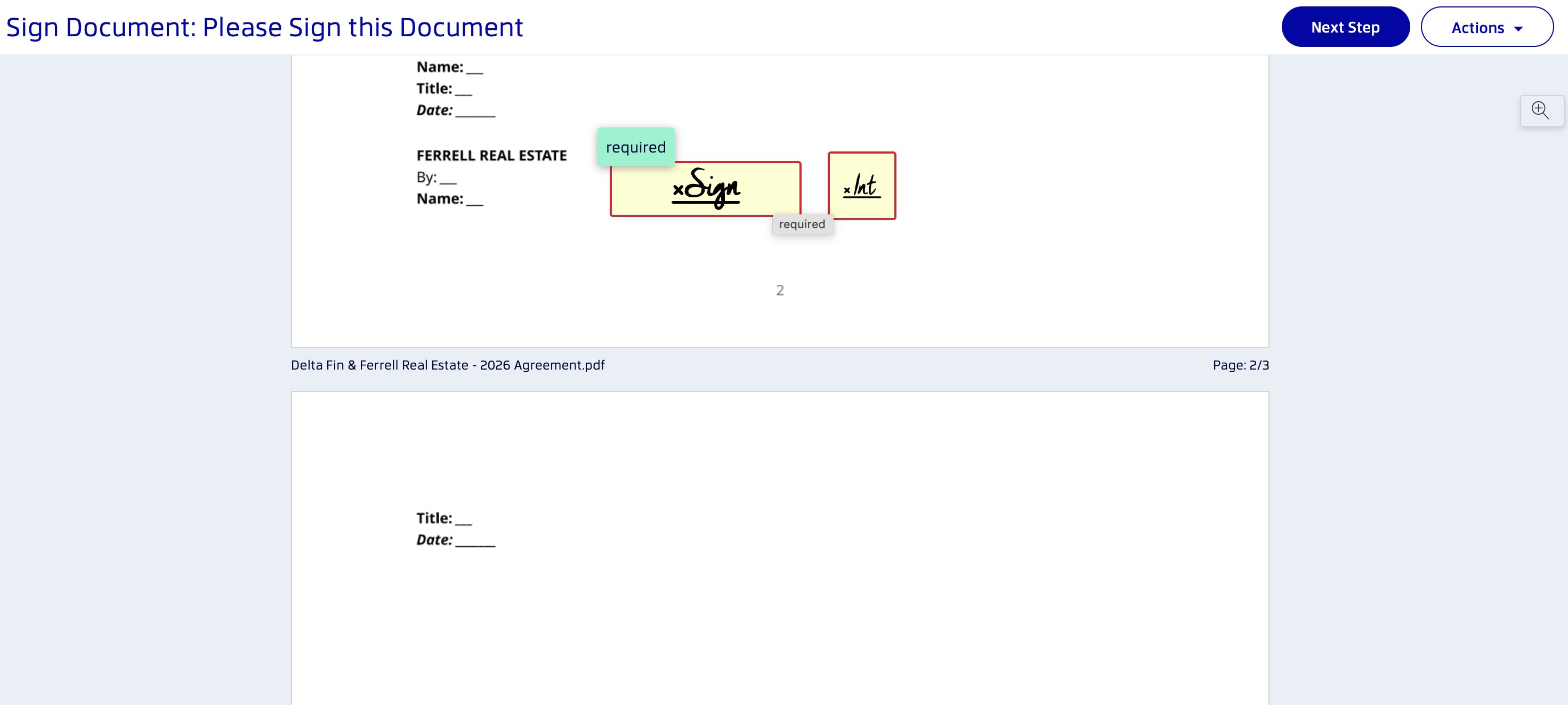
The document will navigate you to the signature fields. Click on the yellow signature boxes to add your signature and initials. All required fields are marked and must be completed before you can proceed.
Step 4: Finish and Submit
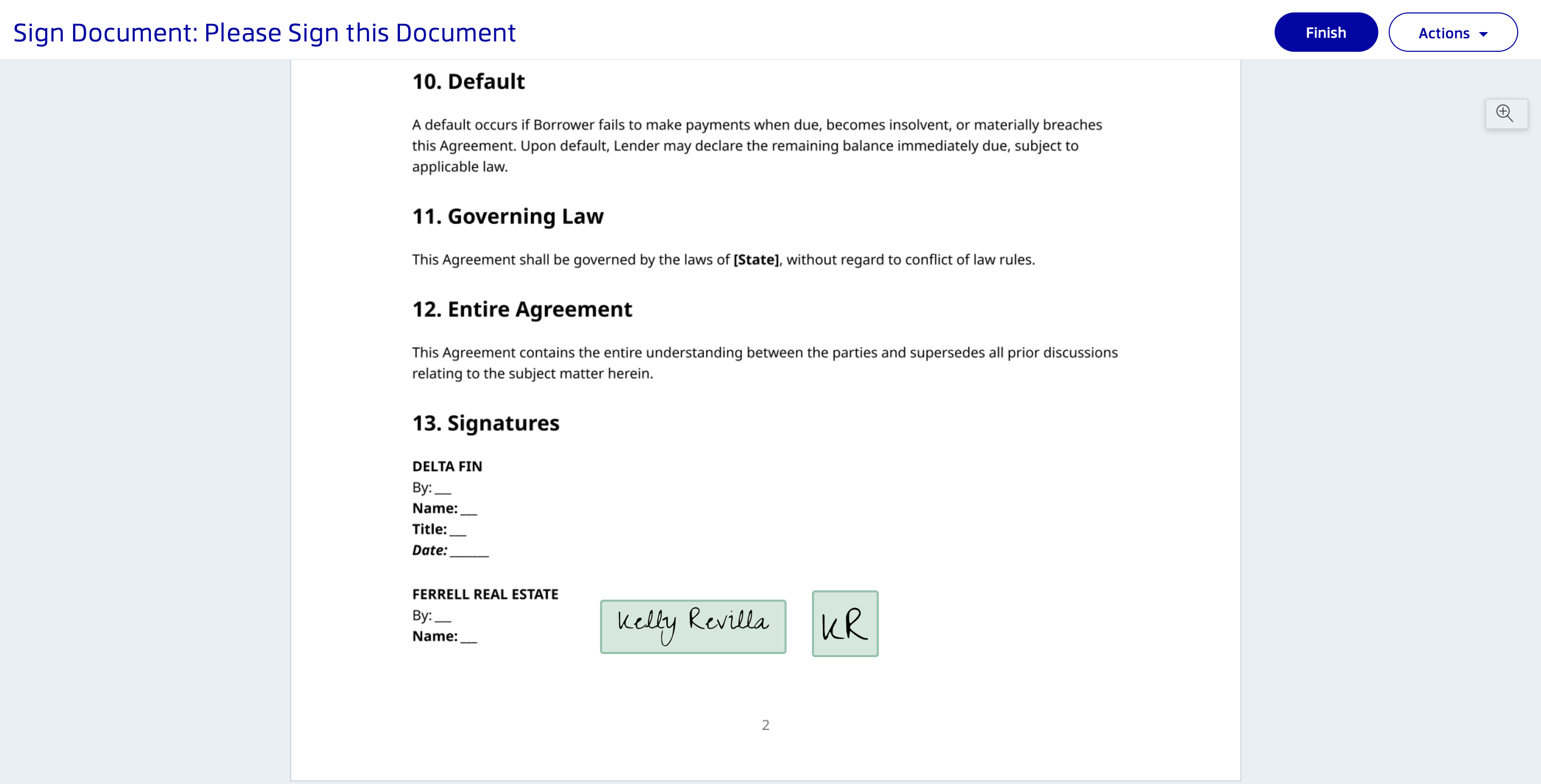
Once all required fields are completed, click the Finish button in the top right corner to submit your signature.
Step 5: Confirm Your Agreement
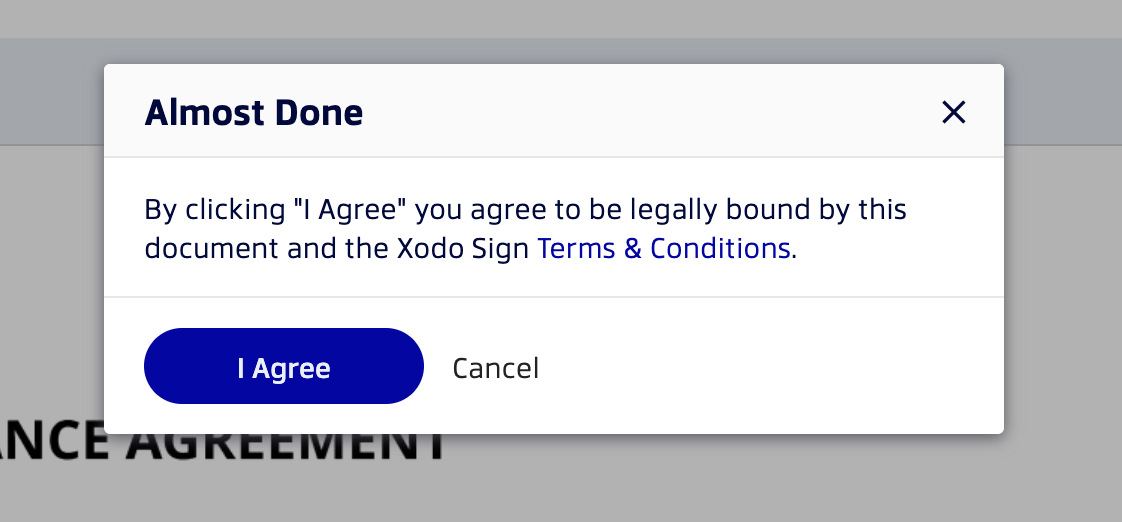
A After pop-up box will appear titled "Almost Done." By clicking I Agree, you confirm you agree to be legally bound by this document and the Xodo Sign Terms & Conditions. Click I Agree to complete the signing process.
Step 6: Document Signed Confirmation
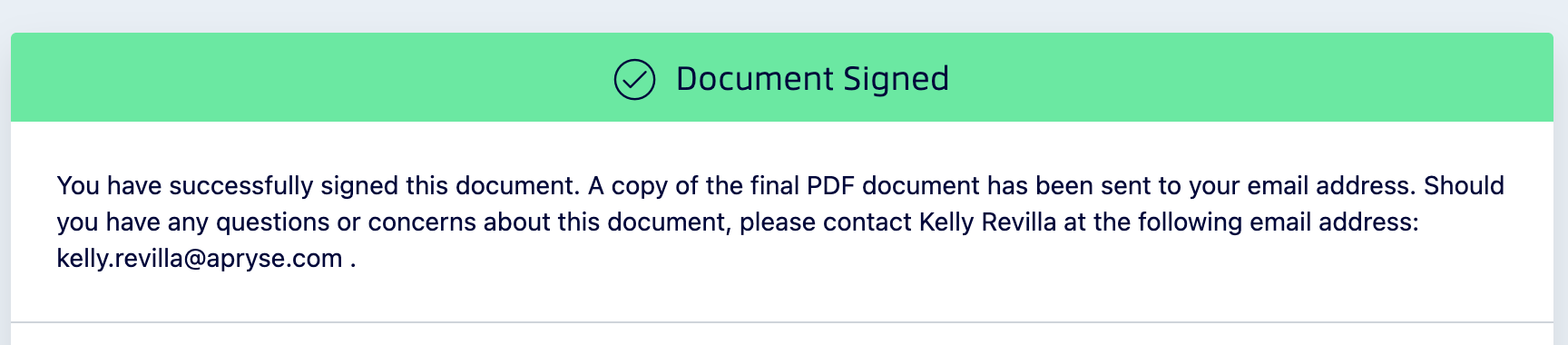
After clicking I Agree, you will see a confirmation message indicating the document has been signed successfully. A copy of the final signed PDF document will also be sent to your email address for your records.
Other options available to signers
- Decline to sign — If you don't want to sign, you can decline the request. The sender will be notified.
- Reassign to someone else — If you're not the right person to sign, you can forward the request to another person.
Frequently asked questions
Do I need a Xodo Sign account to sign?
No. You can sign any document directly in your browser without creating an account.
What if I can't find the signing email?
Check your spam or junk folder. Search for "Xodo Sign" or "xodosign.com". If you still can't find it, ask the sender to resend the request.
What if the signing link has expired?
Signing links can expire based on the sender's settings. Contact the sender and ask them to resend the document.
Was this article helpful?
That’s Great!
Thank you for your feedback
Sorry! We couldn't be helpful
Thank you for your feedback
Feedback sent
We appreciate your effort and will try to fix the article