Cancelling a document stops the signing process and notifies all signers that the document has been cancelled. You can cancel any document that is currently In Process or Awaiting My Signature.
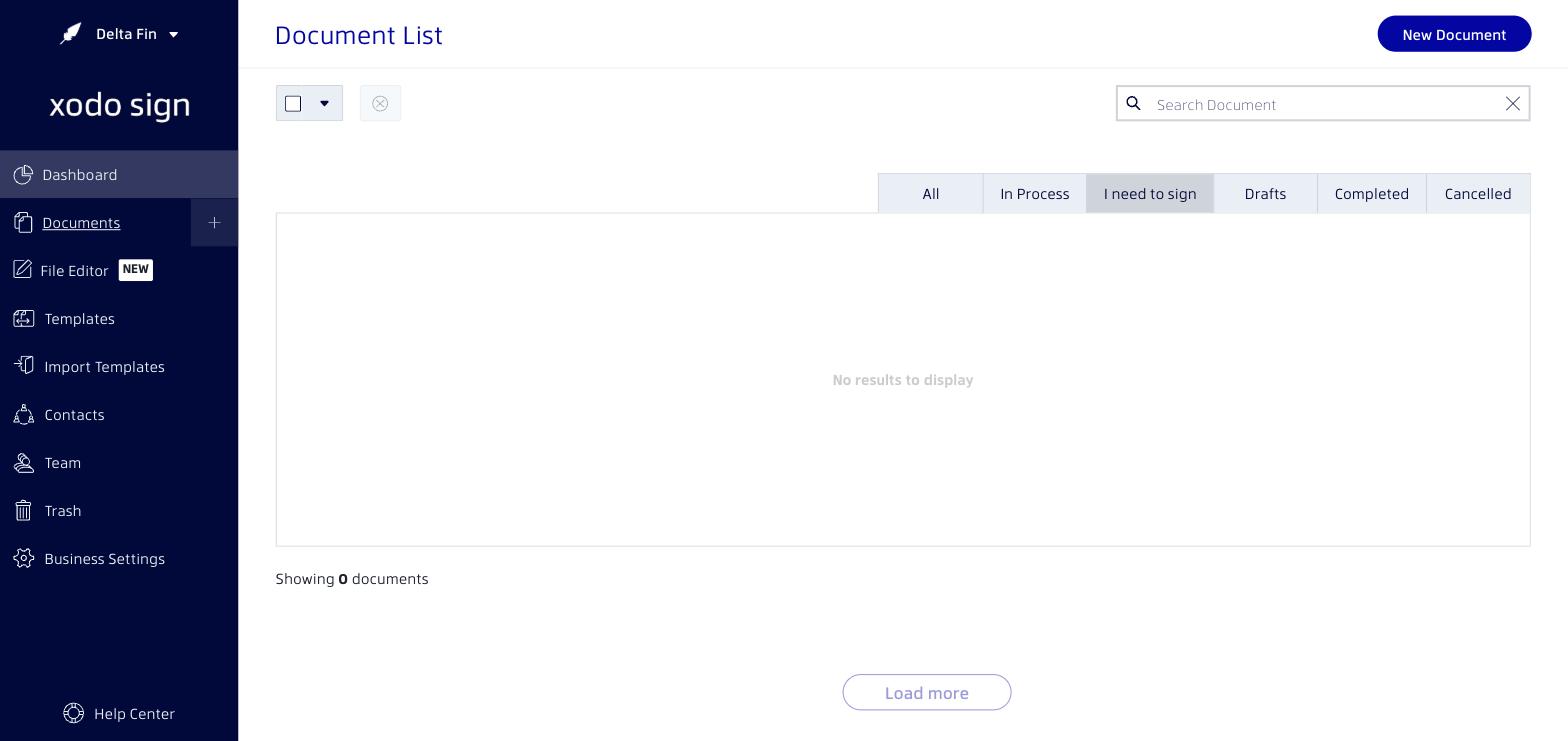
How to cancel a document
- Go to the Documents page in the left navigation.
- Find the document you want to cancel. It must have the status In Process or Awaiting My Signature.
- Click the action button on the right side of the document row.
- Select Cancel from the dropdown menu.
- Confirm the cancellation when prompted.
Once cancelled, the document will appear in your Cancelled documents list. All signers who have not yet signed will receive an email notification that the document has been cancelled.
Can I undo a cancellation?
No. Once a document is cancelled, it cannot be reactivated. If you need to restart the signing process, you will need to create and send a new document.
Cancelling vs. Deleting
Cancelling stops the signing process but keeps the document in your account for your records. Deleting removes the document entirely. Use Cancel when you want to stop the process but retain the document history.
Related articles
Was this article helpful?
That’s Great!
Thank you for your feedback
Sorry! We couldn't be helpful
Thank you for your feedback
Feedback sent
We appreciate your effort and will try to fix the article