Welcome to Xodo Sign! This guide will walk you through everything you need to get started, from creating your account to sending your first document for signature.
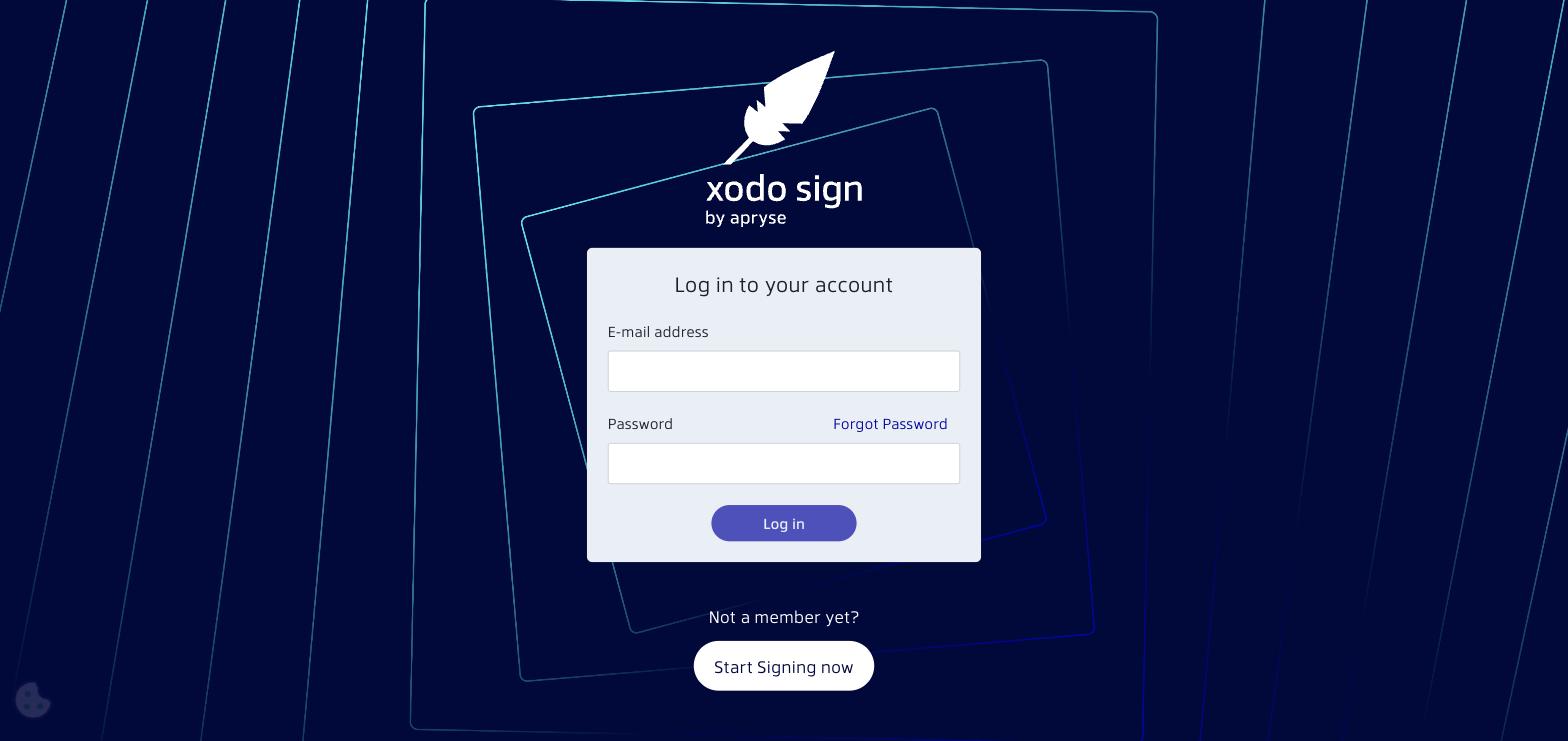
Step 1: Create Your Account
If you haven't already, sign up for a free Xodo Sign account at xodosign.com. During signup, you'll set up your Business Name and Workspace URL.
Read more: Create an Account
Step 2: Get to Know Your Dashboard
After logging in, you'll land on the Dashboard. This is your home base for creating documents, tracking signatures, and managing your account.
Read more: Understanding Your Xodo Sign Dashboard
Step 3: Send Your First Document for Signature
Ready to get a document signed? Click New Document on the Dashboard, upload your file, add your signers, and send it out. It takes just a few minutes.
Read more: Getting Started: Creating Your First Document
Step 4: Sign a Document Yourself
If someone sends you a document to sign, you'll receive an email with a link. Click it to open the document and follow the prompts to sign.
Read more: Signing Documents: A Signer's Guide
What's Next?
Once you've got the basics down, explore these helpful topics:
- How to Create a Template or Template Link - Save time by reusing documents
- Upload Documents from Cloud Storage - Connect Dropbox, Box, OneDrive, or Google Drive
- How to Invite Team Members - Collaborate with your team
- Xodo Sign Software Limitations and Requirements - Supported file types and system requirements
Need Help?
Browse the rest of our Help Center using the navigation on the left, or contact our support team if you have a question we haven't answered.
Was this article helpful?
That’s Great!
Thank you for your feedback
Sorry! We couldn't be helpful
Thank you for your feedback
Feedback sent
We appreciate your effort and will try to fix the article