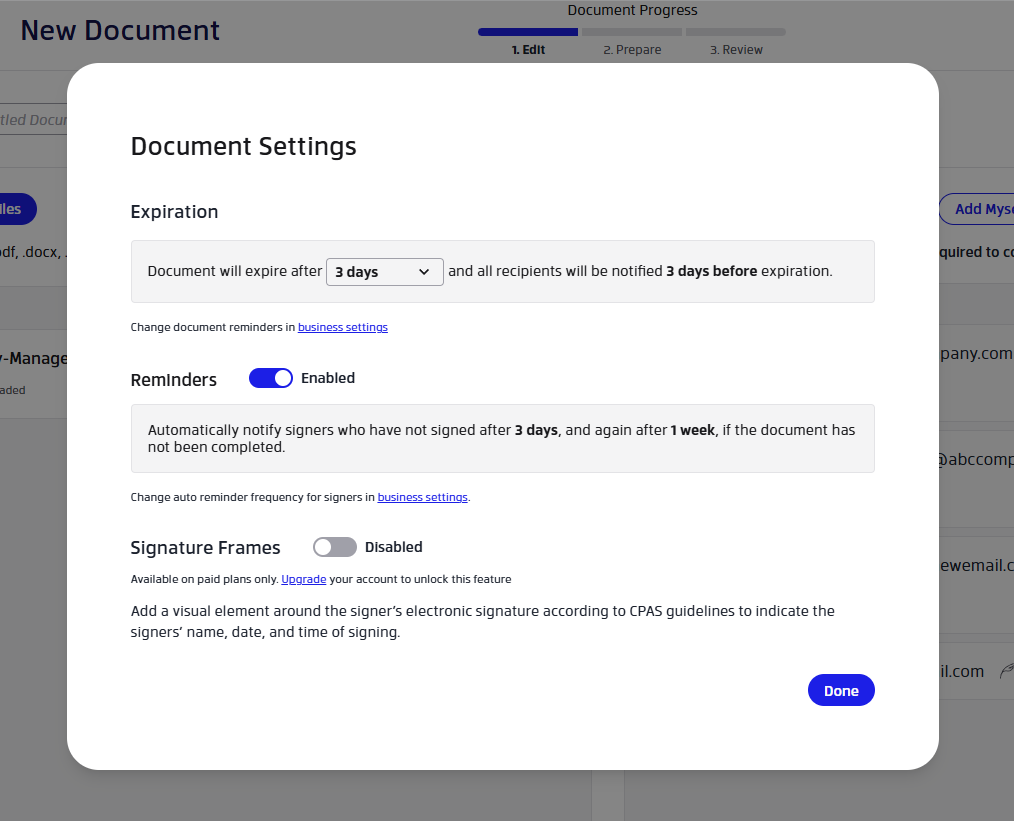
The Document Settings panel lets you configure per-document options like expiration, automatic reminders, and signature frames. You can access it on the New Document page during the Edit step.
How to Open Document Settings
- On the New Document page (Edit step), click Document Settings in the toolbar at the top.
- The Document Settings panel opens as a dialog.
- Configure the settings you need (see below).
- Click Done to close the panel and save your choices.
Expiration
The Expiration setting controls how long recipients have to sign the document. The default is set by your Business Settings (typically 3 months). The panel shows you the current setting — for example: "Document will expire after 3 months, and recipients will be notified 3 days before expiration."
To change the default expiration period or notification timing for all documents, go to Business Settings > Expiration & Reminders.
Reminders
The Reminders toggle controls whether signers are automatically notified if they haven't signed yet.
- Disabled — Signers will not be automatically notified. You can still send manual reminders from the document detail page.
- Enabled — Signers are automatically reminded after 1 week, and again after 1 month, if the document has not been completed.
To change the reminder frequency for all documents, go to Business Settings > Expiration & Reminders.
Signature Frames
Signature Frames add a visual element around the signer's electronic signature. This frame displays the signer's name, the date, and the time of signing — following CPAS (Certified Professional Accountant Standard) guidelines.
Signature Frames is a paid feature. If your plan does not include this feature, the toggle will be disabled and you'll see a prompt to upgrade your plan.
Related Articles
Was this article helpful?
That’s Great!
Thank you for your feedback
Sorry! We couldn't be helpful
Thank you for your feedback
Feedback sent
We appreciate your effort and will try to fix the article