A Signer PIN is an extra layer of security for your templates. When enabled, each signer is required to enter a PIN before they can begin signing. This helps ensure that only the intended person signs the document.
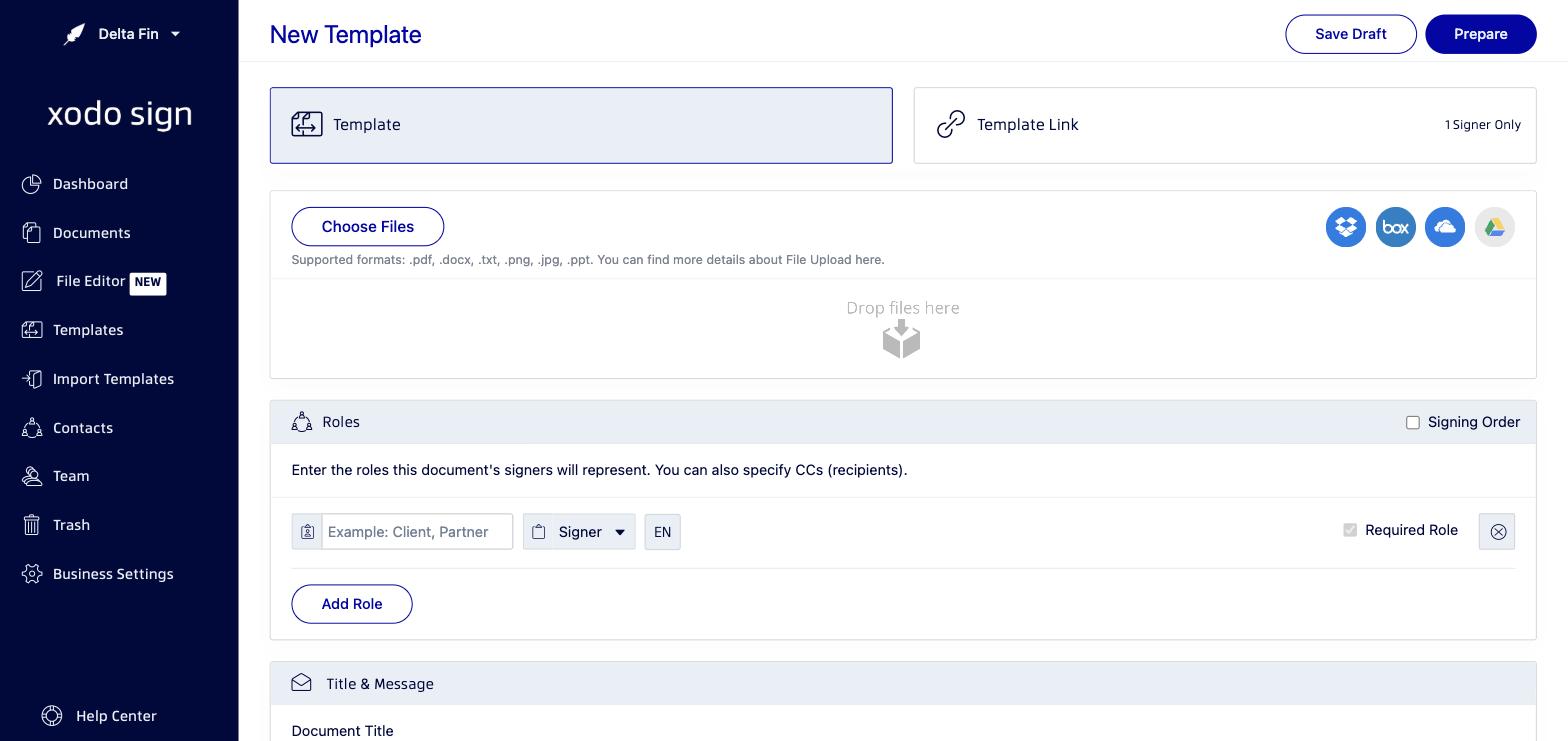
How to Add a Signer PIN to a Template
- Open your template for editing, or create a new template.
- In the Roles section, find the signer role you want to protect.
- Click the Enable button next to the "Signer authentication disabled" prompt for that role.
- Choose Signer PIN as the authentication method.
- Enter the PIN you want this signer to use.
- Save or publish your template.
Note: If you do not set a Signer PIN during template creation, you can still assign a PIN to each signer manually when you send the template document for signature (see: Signer PIN - Documents).
How It Works for Signers
When a signer receives the document and clicks the signing link, they will be prompted to enter the PIN before they can access the document. They will not be able to sign without entering the correct PIN.
Related articles
Was this article helpful?
That’s Great!
Thank you for your feedback
Sorry! We couldn't be helpful
Thank you for your feedback
Feedback sent
We appreciate your effort and will try to fix the article