Auto Reminders automatically send follow-up emails to signers who haven't signed yet. You can set them up globally for all documents, or enable them for individual documents.
Enable Auto Reminders for all documents
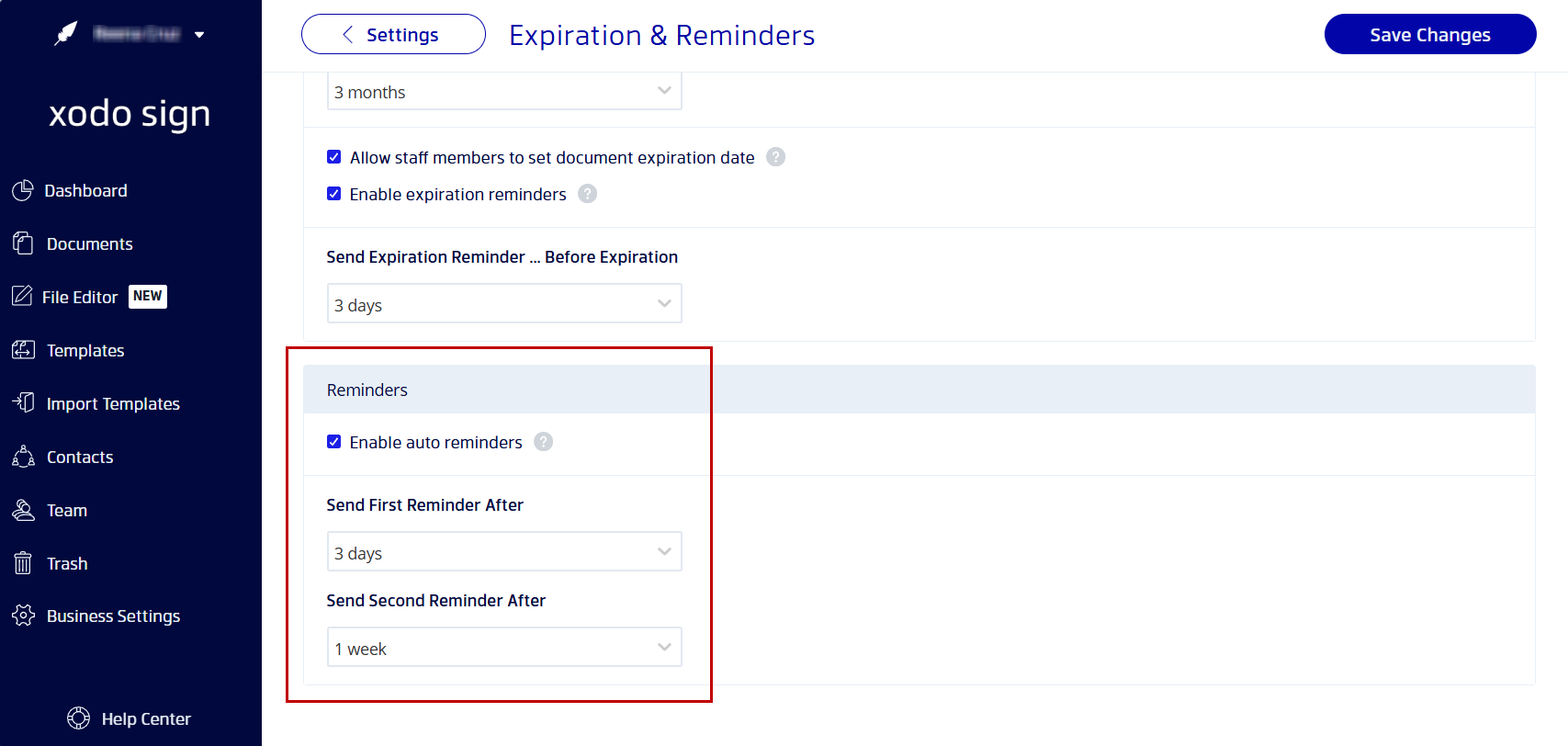
- Go to Business Settings in the left navigation.
- Click Expiration & Reminders.
- Scroll to the Reminders section.
- Check Enable auto reminders.
- Set the Send First Reminder After interval (e.g., 3 days).
- Optionally set the Send Second Reminder After interval. Leave blank to send only one reminder.
- Click Save Changes.
Enable Auto Reminders for a single document
- When creating or editing a document, go to Document Settings.
- Enable the Reminders toggle.
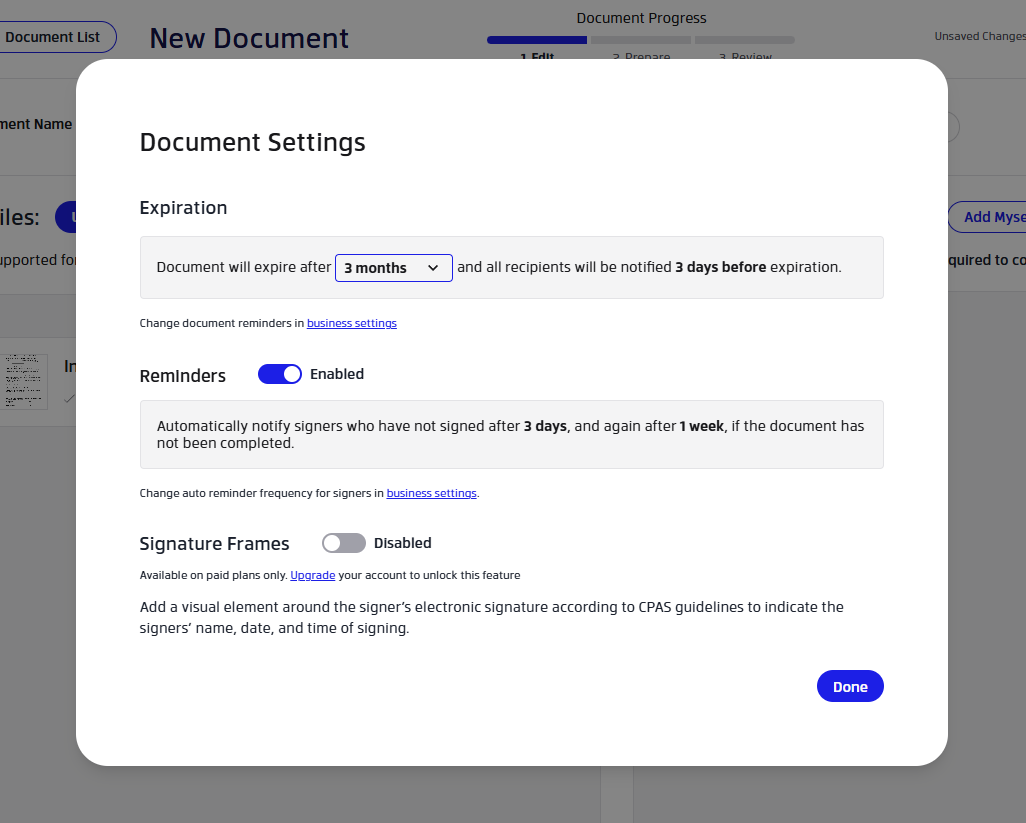
The reminder schedule follows your global settings. To change the timing, update Business Settings > Expiration & Reminders > Reminders.
Note: Auto reminders are sent only to signers who have not yet signed. Signers who have already completed their signature will not receive a reminder.
Troubleshooting
- Signers not receiving reminders: Confirm the signer's email is correct and that auto reminders are enabled at the business level or on the specific document.
- You only want one reminder: Set the first reminder interval and leave the second field blank.
Was this article helpful?
That’s Great!
Thank you for your feedback
Sorry! We couldn't be helpful
Thank you for your feedback
Feedback sent
We appreciate your effort and will try to fix the article