Sending a document for signature in Xodo Sign takes just a few minutes. Follow these steps to create and send your first document.
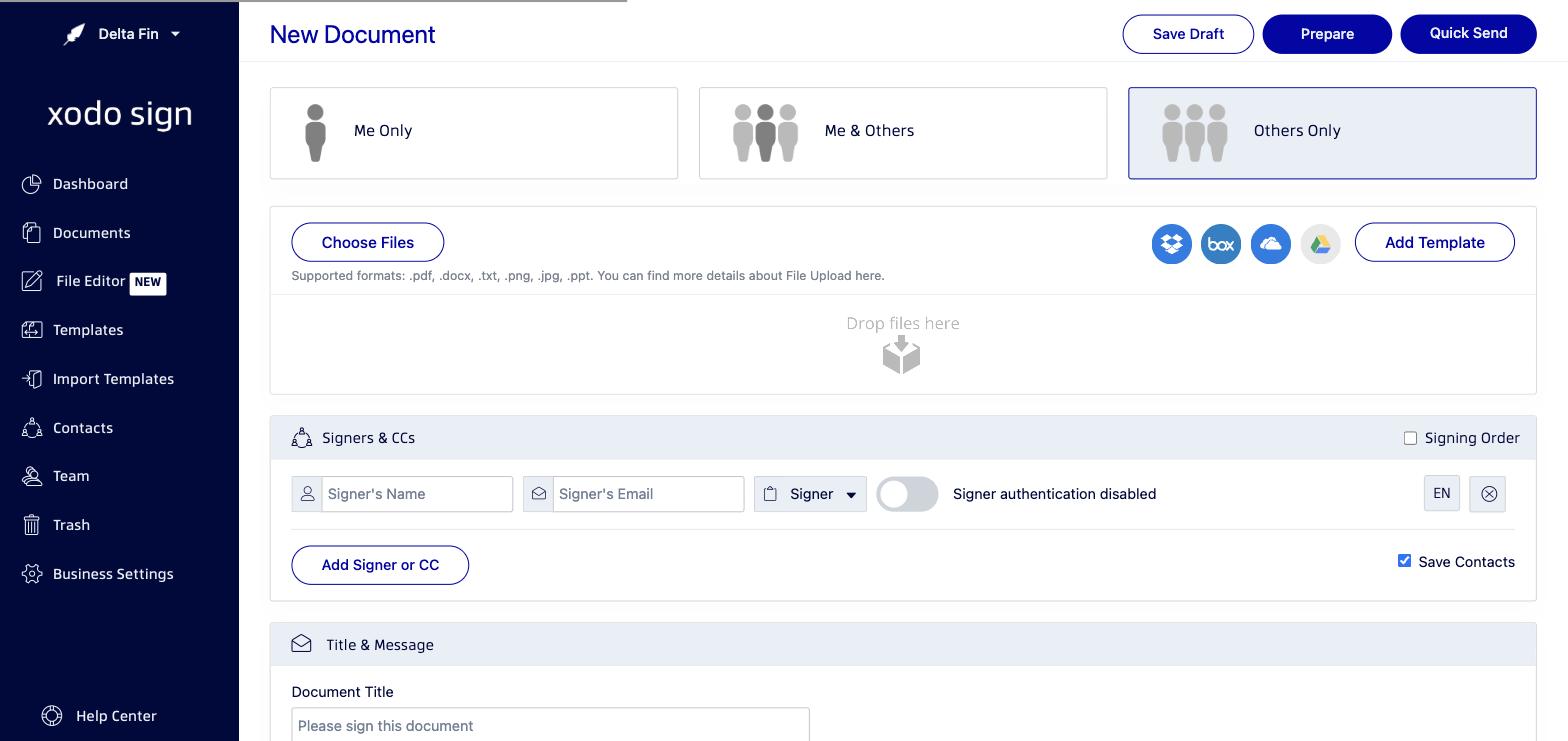
Step 1: Start a new document
- Log in to your Xodo Sign account.
- From the Dashboard, click New Document, or click Documents in the left navigation and then click New Document.
- Choose who needs to sign:
- Me Only — Only you need to sign.
- Me & Others — You and at least one other person need to sign.
- Others Only — Only other people need to sign (you're just the sender).
Step 2: Upload your document
- Click Choose Files to upload a file from your computer, or click a cloud storage icon (Dropbox, Box, OneDrive, Google Drive) to import from the cloud.
- Supported formats: .pdf, .docx, .txt, .png, .jpg, .ppt
Tip: PDF files are recommended for the best signing experience and to preserve document formatting.
Step 3: Add signers
- In the Signers & CCs section, enter the name and email address of each signer.
- Assign each person a role: Signer (must sign) or CC (receives a copy but doesn't sign).
- Optionally, enable Signing Order (top-right of the Signers section) to control the order in which signers receive the document.
- Click Add Signer or CC to add more people.
Step 4: Add a title and message (optional)
- Scroll down to the Title & Message section.
- Enter a document title and a personalized message for your signers.
Step 5: Prepare the document
- Click Prepare at the top of the page.
- The Document Editor opens, where you can place signature fields, text fields, date fields, checkboxes, and more.
- Drag fields from the right-hand panel onto the document where you want signers to complete them.
- Assign each field to the correct signer using the color-coded signer tags.
- When done placing fields, click Send.
Quick Send: If you don't need to place fields, you can use Quick Send at the top of the New Document screen to send immediately without opening the editor.
Step 6: Monitor document status
After sending, you'll be redirected to the Documents list. You can track the status of your document:
- Waiting for Others — Signers have been notified and the document is awaiting their signatures.
- Completed — All parties have signed. A copy is automatically sent to everyone.
Signers will receive an email with a link to sign — they don't need a Xodo Sign account to sign a document.
Related articles

Was this article helpful?
That’s Great!
Thank you for your feedback
Sorry! We couldn't be helpful
Thank you for your feedback
Feedback sent
We appreciate your effort and will try to fix the article